App guides
Bank SMS: the two fields that have to match
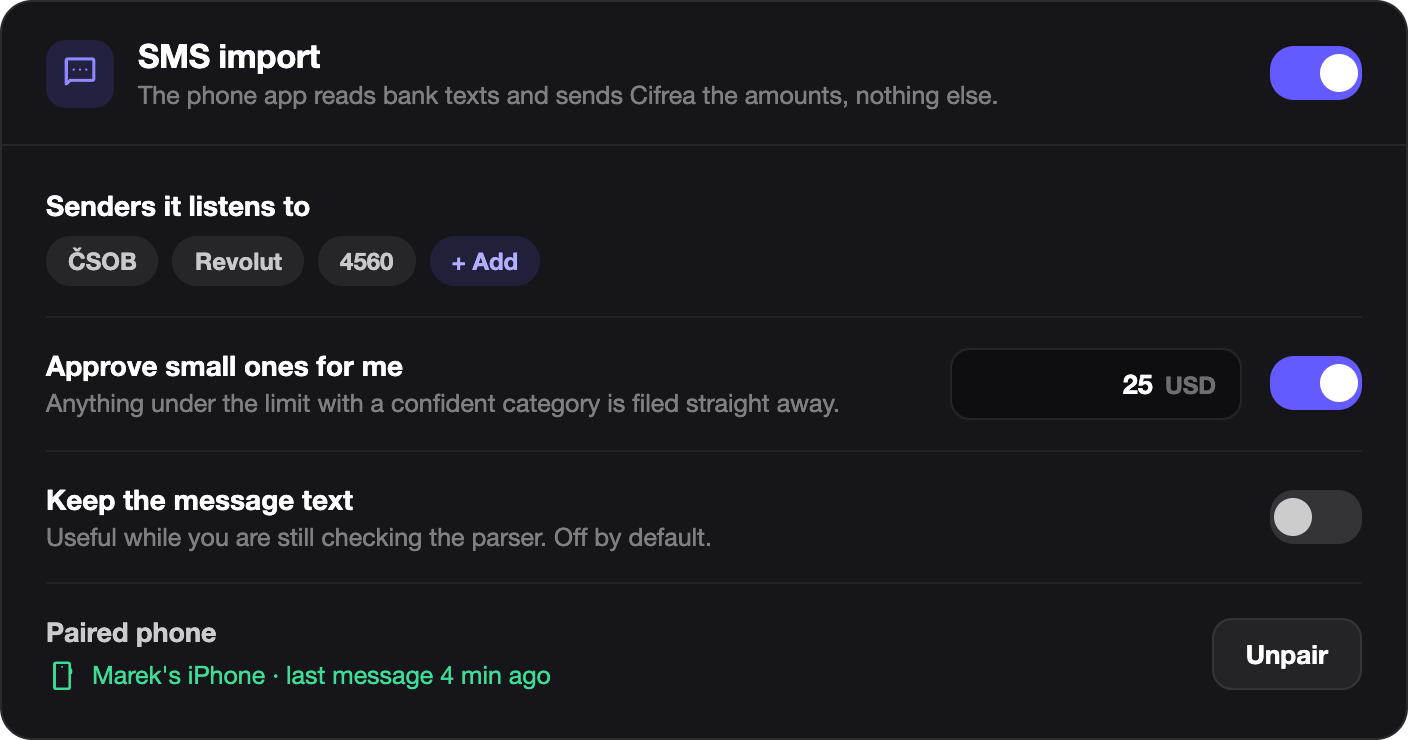
Cifrea never talks to your bank. A Shortcut on your phone forwards the text, and two fields decide whether it lands in the right account.
Every time you tap a card, your bank sends you a text. That text already contains almost everything a ledger row needs: the amount, the merchant, the last four digits of the card. Cifrea can turn it into a transaction waiting for your approval, which removes the single most common reason household tracking dies, namely that nobody wants to type in a supermarket queue.
It is worth being precise about what this is, because it is not what people assume.
Cifrea never talks to your bank
There is no open-banking connection, no credentials, and no third party holding a token on your behalf. A Shortcut that you set up on your own phone reads the message your bank already sent you and posts it to your household. The bank is not involved and never knows.
That has one consequence worth stating plainly: if the Shortcut stops running, the messages stop arriving, and nothing is lost except the convenience. Your ledger is not built on it.
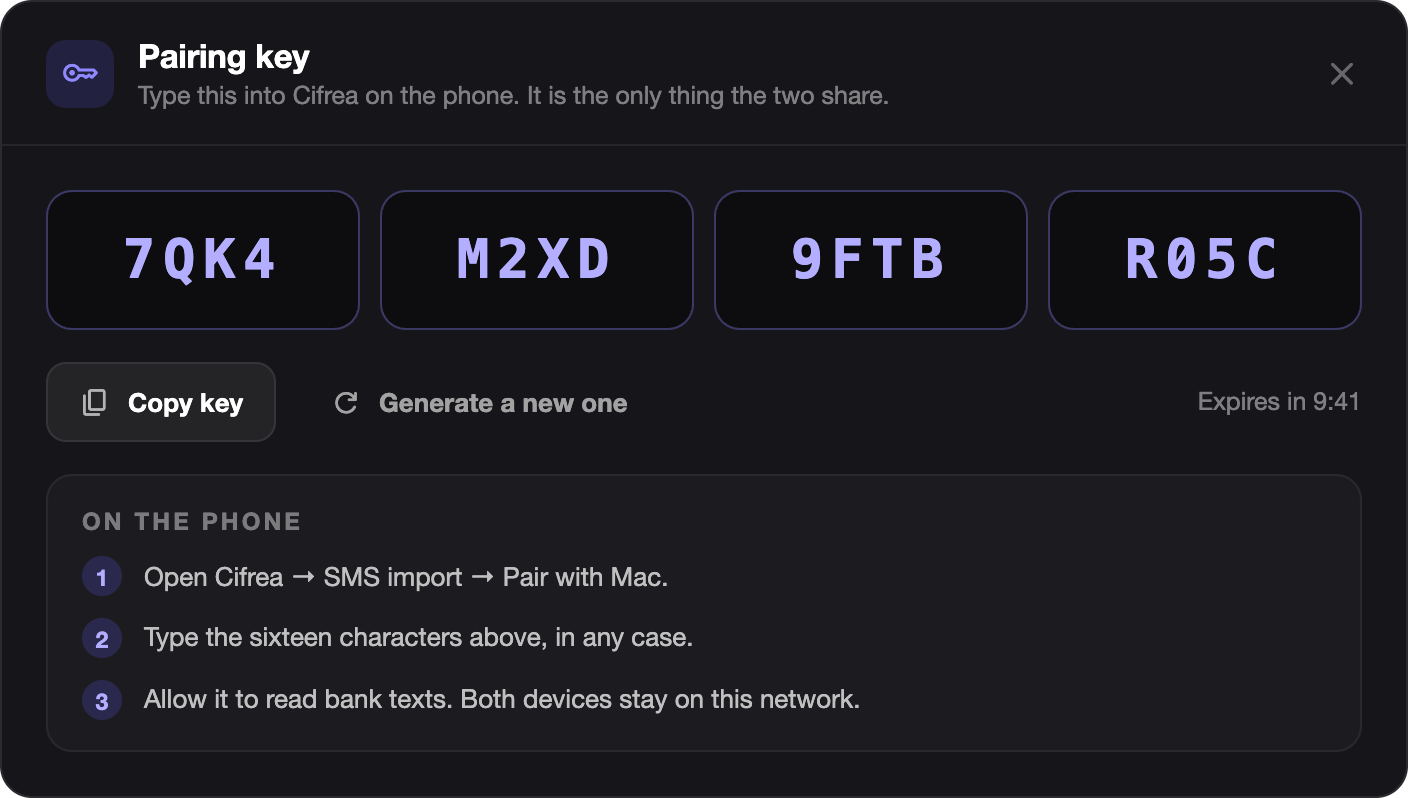
Step 1. A key, made on the phone it belongs to
Each phone that forwards texts carries its own key. No key, nothing arrives.
The key is created on the device it belongs to, by whoever is signed in there. This matters if two of you are running the household: your partner makes hers on her own phone, not from yours. It is not a shared secret, and it is not something one person hands to the other.
The key is shown exactly once. The server keeps a fingerprint, not the key itself, so nobody can look it up again afterwards. That includes you. Paste it into the Shortcut while it is on screen.
If a phone is lost, or the key ends up somewhere it should not be, revoke it. Revoking is immediate and permanent: that phone stops being able to send, the messages it already sent are untouched, and there is no un-revoking. You make a new key instead.
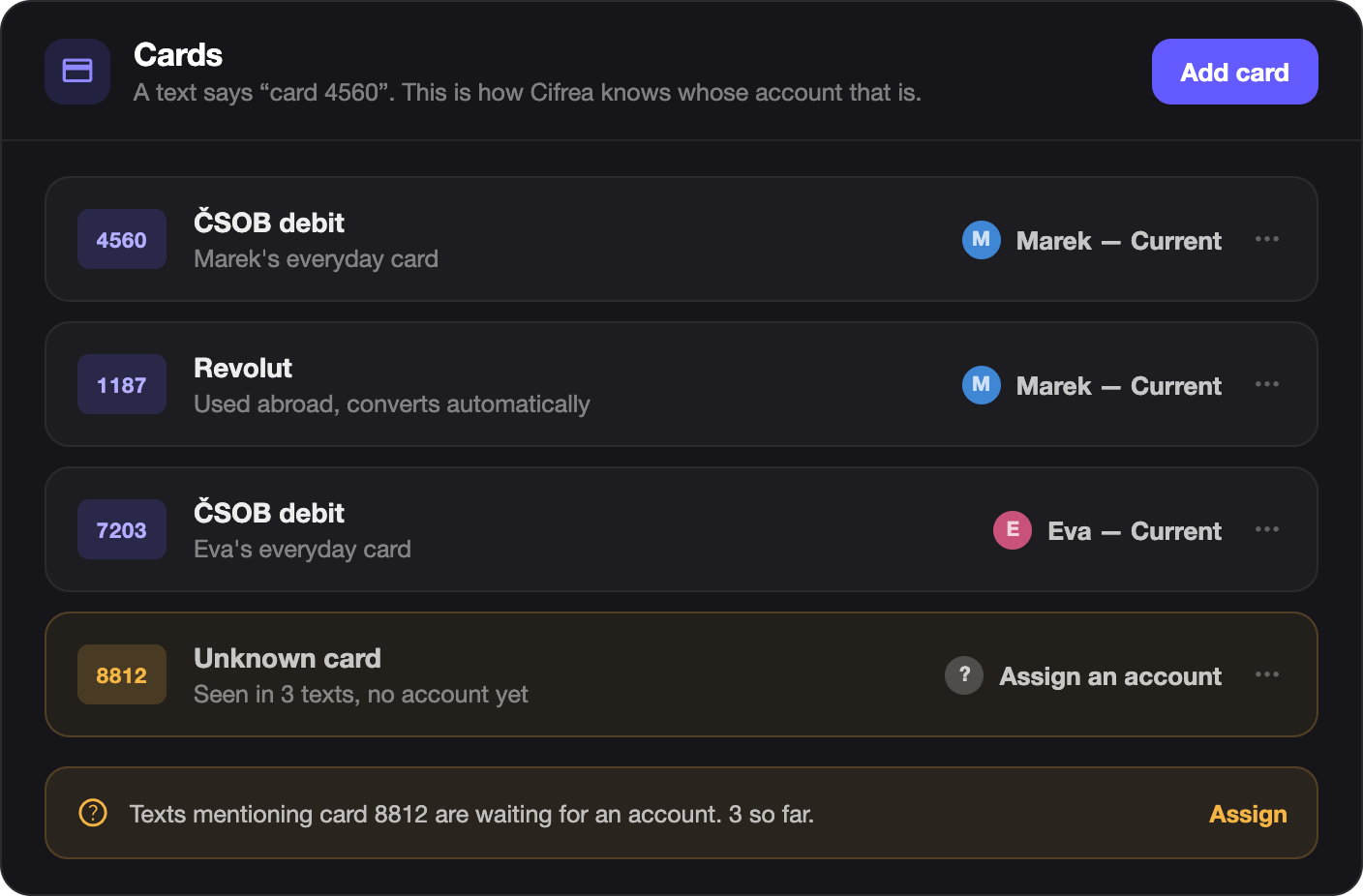
Step 2. A card, so the money knows where it went
Your bank writes “card 2660”. It has no idea which of your accounts that is, and neither does Cifrea until you say so. The card list is that translation, and it is the second field that has to match.
Two things have to agree, and both are easy to get almost right:
- The bank’s short name. The Shortcut sends one, and it has to match the name on the card. If it does not, the message still arrives. It just has no account on it.
- What the bank writes to name the account. Usually the last four digits. Capitals do not matter; nothing else can differ.
Each card names its own bank, because two cards at two banks can end in the same four digits.
You can skip this entirely and it still works. Messages arrive at the approval queue with the account blank, and you pick it by hand every time, which is fine for one card and tiresome for four.
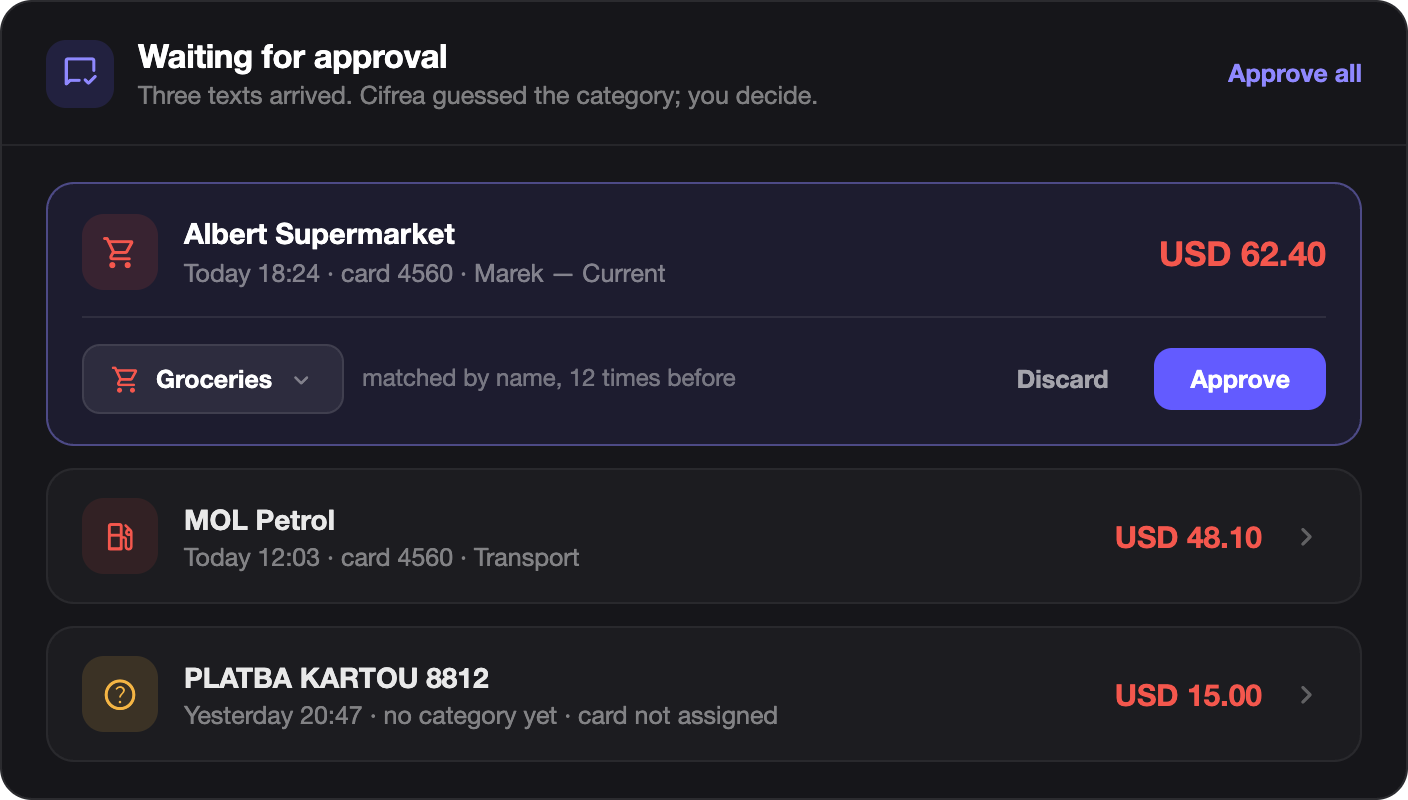
Step 3. Approve, on the Transactions page
Nothing an SMS produces is posted straight into your ledger. It waits, and a dot on the Transactions tab tells you how many are waiting.
This is deliberate. A text message is a notification, not a record: it can arrive twice, arrive for a payment that later fails, or describe a currency conversion the bank has not settled yet. Approval is where you catch that, and it takes a second per row.
When something does not arrive
Work down in this order, because each step rules out the one below it.
- Nothing at all arrives. The key is the usual answer: revoked, never pasted, or pasted into a Shortcut on a different phone.
- Messages arrive with no account. The bank short name does not match, or the card is not in the list. Both leave the row otherwise intact, so approve them and fix the mapping afterwards.
- One purchase becomes two rows. Some banks send an authorisation and then a settlement. Approve one and delete the other; they are not identical, so nothing can safely merge them for you.
What it does not do
It does not backfill. Turning it on today does nothing about last month, because those texts were never posted. Use a statement import for history and SMS for what happens from here.
It also only knows the banks whose message format it has been taught. If yours is not there yet, the setup screen is where a new one gets added, and the format only has to be described once.